
Week 3
Sword and Slime
Part of Make Your First Mini-Game.
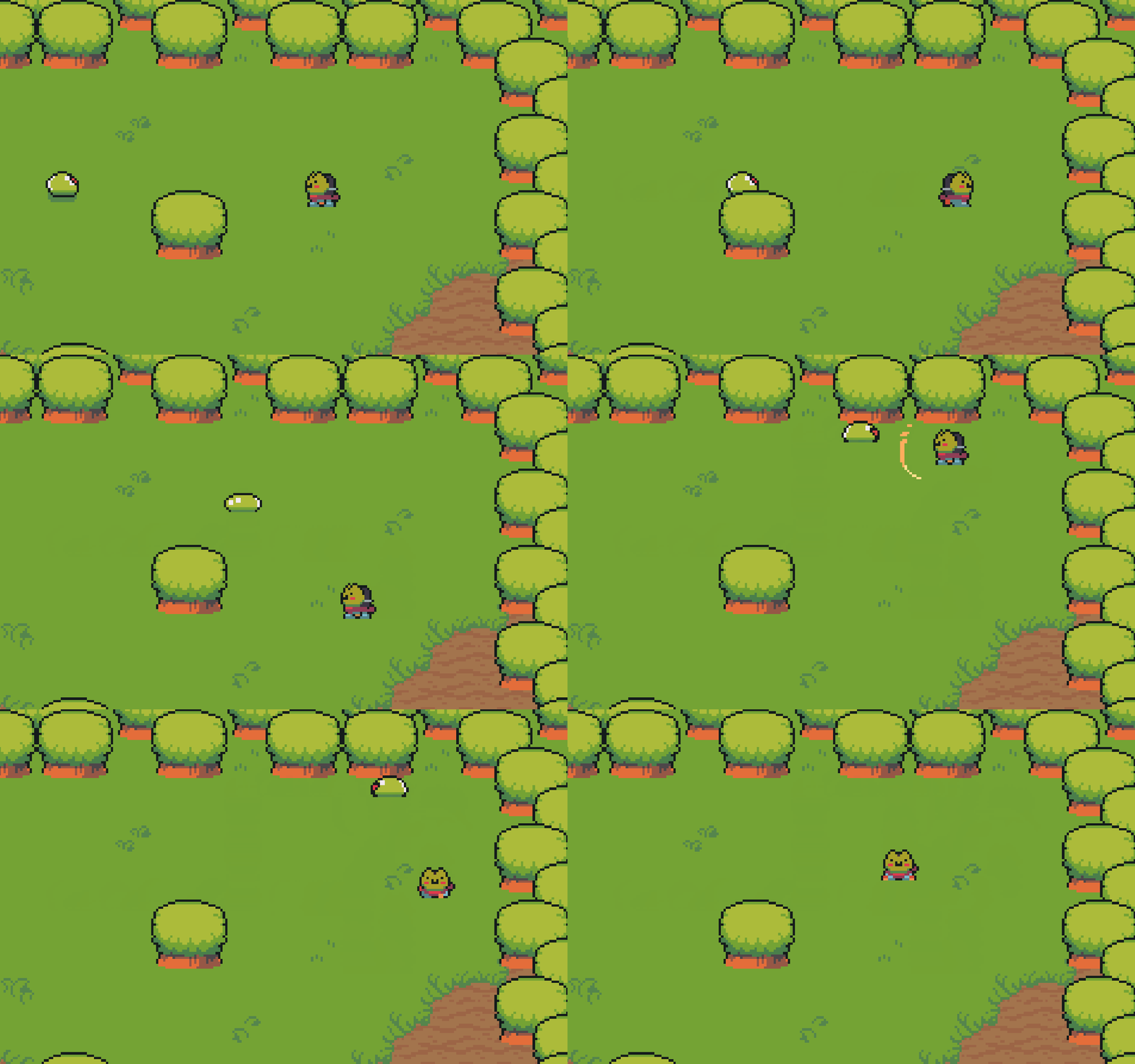
Now the game gets a point. A slime wanders the forest, and your learner gives the hero a sword to defeat it. Building the attack and the enemy together creates the core loop that every action game is made of.
Class file
Joining mid-course or catching up?
Download this week's starter project so your learner can jump straight into this class, instead of carrying their previous file forward. Enrolled families receive the password from me before the first class.
What this class covers
- A slime in the forest
- A slime moves into the clearing and paces around, turning when it meets a tree or now and then on its own - the forest's first enemy.
- The hero's sword
- Your learner gives the hero a way to fight back: a tap of the Space bar swings a sword that appears on the side the hero faces and vanishes a blink later.
- The core loop
- Spawning the sword and letting it defeat the slime on contact creates the attack-and-defeat loop that every action game is built from.
A look inside the class
Optional Customizations
Just-for-fun customizations to try on your own between classes. Never needed to keep up.
- Add more slimes.
Your forest can hold a whole pack. Click the Instances layer, then Alt + left-click to place two or three more obj_enemy_slime around the clearing, one at a time, away from your hero's start. Now there is a real little battle to fight - and it is the one that sets up next week's 'clear them all to win'. This is the most useful customization to try!
- Build a brand-new attack from scratch.
Do not just repaint the sword - different attack art is drawn facing different ways, so swapping the sprite alone usually looks wrong. Instead, build a whole new attack the same way you built the sword, then point your hero at it. Start by making the object: right-click Objects, choose Create Object, name it obj_claw, and give it the sprite spr_claw_1 (in the FX folder).
Add a Create event so it flashes once, then vanishes - just like the sword:
image_speed = 1; // play the claw swipe once alarm[0] = 10; // vanish after 10 framesAdd an Alarm 0 event to remove it:
instance_destroy();Add a Step event so the claw appears on the side the hero faces and follows him, using the claw's own distance of 8:
if (obj_player.sprite_index == obj_player.walk_right) { x = obj_player.x + 8; y = obj_player.y; image_angle = 0; } if (obj_player.sprite_index == obj_player.walk_left) { x = obj_player.x - 8; y = obj_player.y; image_angle = 180; } if (obj_player.sprite_index == obj_player.walk_up) { x = obj_player.x; y = obj_player.y - 8; image_angle = 90; } if (obj_player.sprite_index == obj_player.walk_down) { x = obj_player.x; y = obj_player.y + 8; image_angle = 270; } depth = obj_player.depth - 1; // draw just in front of the heroGive it the power to bop slimes - add a Collision event with obj_enemy_slime:
with (other) { instance_destroy(); // 'other' = the slime }Finally, wire your hero to it - this is the one line you change. In obj_player's Step, find your swing line:
if (keyboard_check_pressed(vk_space)) { instance_create_layer(x, y, "Instances", obj_sword); }And change obj_sword to obj_claw (just the last word inside the brackets):
if (keyboard_check_pressed(vk_space)) { instance_create_layer(x, y, "Instances", obj_claw); }Press Run - Space now throws a claw swipe that faces the way you move and bops slimes. You rebuilt the whole attack yourself! Want the sword back? Change that one word to obj_sword again - your sword object is still there, untouched.
- Add a wandering animal.
Give a friendly animal the slime's roaming brain, just for atmosphere. Make the object: right-click Objects, choose Create Object, name it obj_racoon_1, and give it the sprite spr_racoon_walk (in the Animals folder).
Add a Create event with the same kind of brain settings as the slime, but a little quicker:
dir = irandom(3); // 0=down, 1=up, 2=left, 3=right patrol_spd = 1.0; // how fast it runs move_dist = 0; // pixels roamed since the last turn turn_after = irandom_range(6, 10) * 16; // turn again after 6-10 cells rest = 0; // frames left to pause after a turn depth = -y; // the standard layering lineAdd a Step event - the slime's roaming code, plus a short rest after each turn so it pauses now and then:
// Resting after a turn? Stand still and count down. if (rest > 0) { rest -= 1; image_speed = 0; // freeze the walk while paused image_index = 0; } else { image_speed = 1; // walking again var mx = 0; var my = 0; if (dir == 0) my = patrol_spd; // down if (dir == 1) my = -patrol_spd; // up if (dir == 2) mx = -patrol_spd; // left if (dir == 3) mx = patrol_spd; // right if (place_meeting(x + mx, y + my, obj_tree_1) || move_dist >= turn_after) { dir = irandom(3); // new direction move_dist = 0; turn_after = irandom_range(6, 10) * 16; rest = irandom_range(180, 240); // pause ~3-4 s before running again } else { x += mx; y += my; move_dist += patrol_spd; } // The animal sheet only faces right - flip it horizontally to face left. if (dir == 2) image_xscale = -1; // moving left if (dir == 3) image_xscale = 1; // moving right } // Layer correctly as it moves, so it tucks behind tree tops instead of over them. depth = -y;Click the Instances layer and Alt + left-click to place one (or a few) obj_racoon_1 in your clearing. Press Run - a racoon scampers around and dashes from tree to tree, the same brain as the slime but quicker. Swap the sprite for spr_dog_walk, spr_cat_walk, or spr_chicken_walk_1 (also in the Animals folder) to fill your forest with a whole menagerie.