
Week 2
The Forest Turns Solid
Part of Make Your First Mini-Game.
This week the empty screen becomes a place. Your learner paints a forest floor, plants their own trees, and adds collision (the rule that stops the hero from walking through things). The world starts to feel real.
Class file
Joining mid-course or catching up?
Download this week's starter project so your learner can jump straight into this class, instead of carrying their previous file forward. Enrolled families receive the password from me before the first class.
What this class covers
- Painting the forest
- Your learner paints a forest floor and plants their own trees, turning the blank screen into a place.
- Making the world solid
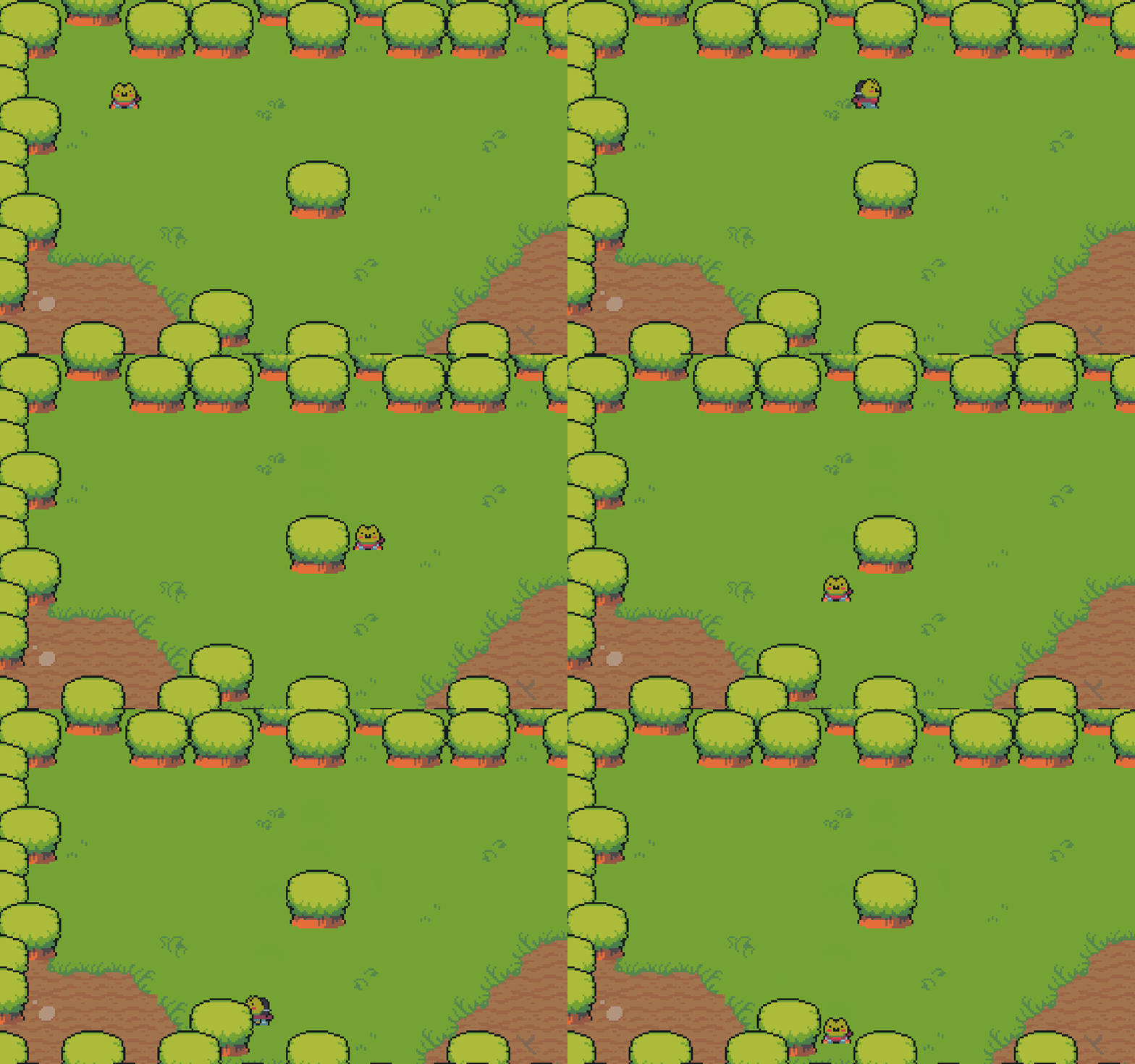
- Your learner adds collision, the rule that stops the hero from walking through the trees, so the forest feels solid and real. The hero stops at each trunk and even slides along it.
A look inside the class
Optional Customizations
Just-for-fun customizations to try on your own between classes. Never needed to keep up.
- Paint in more ground variety.
Back to painting for more texture. In the Layers panel, click the Ground layer, then open the Room Editor tab (top-right) to bring the tileset back up. Pick the light-green tiles, right next to the ones you used, and brush in a patch - a meadow of lighter grass, or a mossy nook. There is no wrong floor!
- Add walk-through decor, like grass and bushes.
Build a new object the same way you built obj_tree_1, but this one you can walk through. Right-click Objects, choose Create Object, name it obj_grass_1, and give it the sprite spr_grass_1. Then add a Create event with the same layering line every object gets:
depth = -y; // lets the hero tuck behind the tall grassClick the Instances layer, then Alt + left-click to place a few tufts around your clearing, one at a time. Because you did not add obj_grass_1 to your player object collision lines, the hero strolls right through it - walk up into a tuft and the hero slips behind it, walk down and he stands in front. You can build obj_bush_1 with spr_bush_1 the same way for a whole undergrowth.
- Dress your border with a second kind of tree.
Your forest does not have to be all one tree. First, build a second tree object: right-click Objects, choose Create Object, name it obj_tree_2, give it the sprite spr_tree_2, and add a Create event with the same layering line:
depth = -y;Click the Instances layer and Alt + left-click to place a few obj_tree_2 one at a time, in among your obj_tree_1 border for a mixed wood. Press Run, and notice the hero walks straight through the new trees!
Now make them solid too! In the obj_player's Step event, find your two collision lines below:
// Move horizontally only if no tree is in the way. if (!place_meeting(x + move_x * spd, y, obj_tree_1)) { x += move_x * spd; } // Move vertically only if no tree is in the way. if (!place_meeting(x, y + move_y * spd, obj_tree_1)) { y += move_y * spd; }And replace them with:
// Move horizontally only if no tree (either kind) is in the way. if (!place_meeting(x + move_x * spd, y, obj_tree_1) && !place_meeting(x + move_x * spd, y, obj_tree_2)) { x += move_x * spd; } // Move vertically only if no tree (either kind) is in the way. if (!place_meeting(x, y + move_y * spd, obj_tree_1) && !place_meeting(x, y + move_y * spd, obj_tree_2)) { y += move_y * spd; }The && in the middle means the hero moves only if it is clear of tree 1 and clear of tree 2. Press Run - now both kinds of tree stop you.