
Week 1
Your Hero Comes to Life
Part of Make Your First Mini-Game.
Our very first class is all about getting comfortable in GameMaker and bringing a hero to life. By the end of the hour your learner has a character they coded themselves, walking and animating around the screen.
Class file
Download your course file here
This is the project your learner starts from in the very first class. Download it ahead of time so they can dive right in. Enrolled families receive the password from me before the first class.
What this class covers
- Getting to know GameMaker
- A friendly tour of the workspace, the same professional tool used to make real games, so your learner knows where the art, the characters, the rooms, and the code all live before we start building.
- Putting a hero on screen
- Your learner creates their hero and places it into the forest clearing, ready to control.
- Moving in four directions
- Your learner writes the code that reads the keyboard and walks the hero up, down, left, and right.
- A walk that feels alive
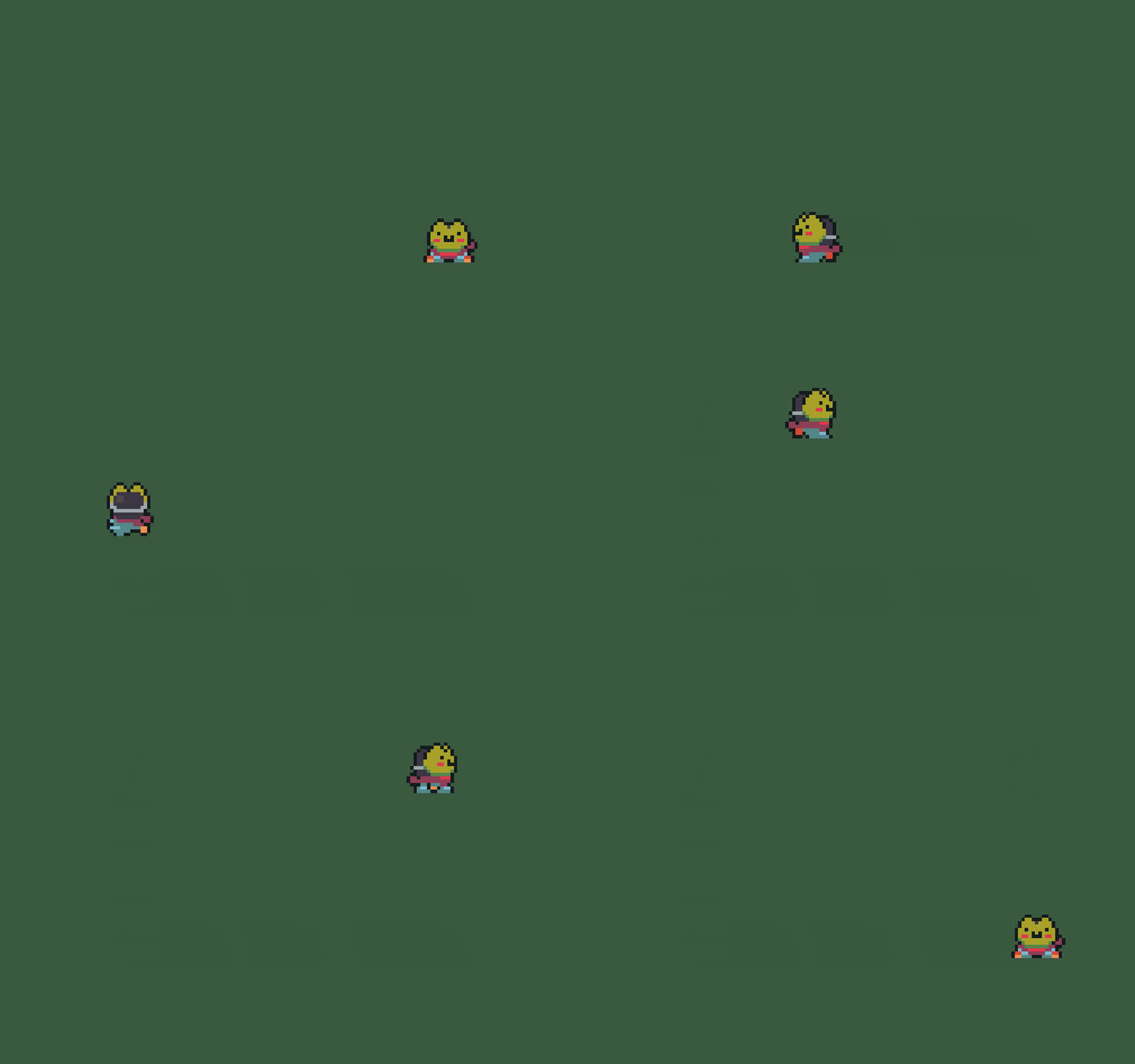
- The hero turns to face the way it is going and animates as it moves, then settles on a standing pose when it stops.
A look inside the class
Optional Customizations
Just-for-fun customizations to try on your own between classes. Never needed to keep up.
- Choose your hero - swap the frog for a knight or a ninja.
Don't want to be a frog? Two quick changes turn your hero into someone else. First, open obj_player and click its Sprite box (top-left of the object editor), then pick your new hero's down sprite, like spr_knight_grey_walk_down. That is what the room editor shows, so your hero looks right before you even press Run.
Next, open the Create event and point your four costume variables at the new hero (and set the starting sprite_index to match):
walk_down = spr_knight_grey_walk_down; walk_up = spr_knight_grey_walk_up; walk_left = spr_knight_grey_walk_left; walk_right = spr_knight_grey_walk_right; sprite_index = walk_down;Your Step code already tells the hero to wear walk_right, walk_left, and the rest, so your new hero walks with the exact same controls. Press Run, then post a screenshot of your hero in the classroom!
- Set your own walking speed.
Open obj_player and click its Create event. One line decides how fast your hero moves:
spd = 2;Change the number, then press Run to feel it. Try 0.5 for a careful explorer, then 4 for a speedster. What speed feels right for your adventure?